turntable
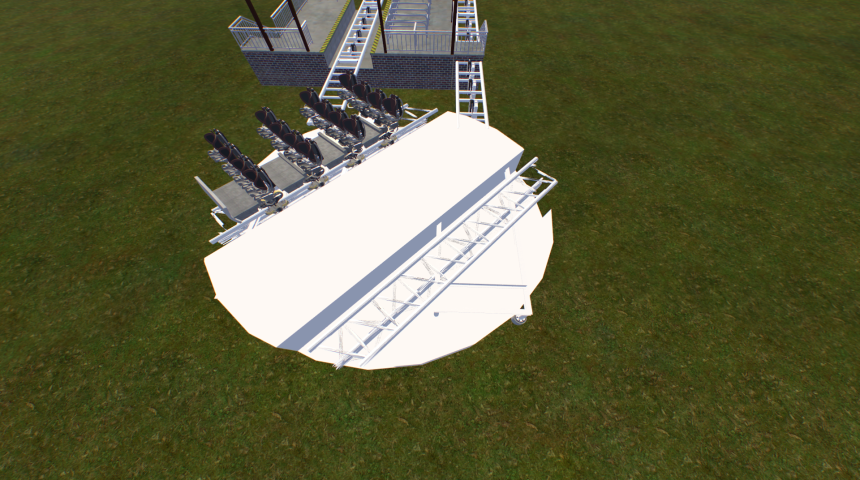
So far, NoLimits 2 offers transfer tables, merge/fork switches and tilt tracks, but no two-way turntable.
Are you disappointed at being limited in your creations? Do you think that Voltron Nevera-style operation is impossible to reproduce? Take comfort: thanks to this new mod,
turntables are now in the game!
This park presents a solution to this limitation: an animated table that temporarily supports custom trains and their cameras, in coordination with the native sections of the coaster.
The course serves as a support for the demonstration.
The mechanism can be configured and reused on different projects, without modifying the custom train scripts.
Download the park, extract it into your own park, create your custom script for your coaster, install the components, configure them… and let the magic happen!
Installation and configuration tutorial
1 — Understand how it works
The visible turntable is a stage object. It does not transform the native NL2 rails into real rotating rails.
The native route continues to run its trains and manage the technical sections. Custom trains normally follow these native trains using their own scripts.
During the rotation, our system temporarily takes control of the custom objects to transport them with the table, then returns them to their usual tracking.
You therefore need a functional native course, custom trains and a coaster script adapted to your installation.
This system does not automatically create the traffic logic for your attraction.
2 — Prepare the native course
Build and configure the necessary sections: blocks, transfer tables, course connections and, possibly, sidings.
in the measurement parameters of your tables,
remember to put all your tables of the same length (recommended minimum = 7.5m) and the distance between positions to 0.
Your coaster script should handle transfer movements, departures, and availability of subsequent sections. For example, if the destination is a launch,
It is your automaton which must prevent the departure as long as it is not available.
To create your custom script for your coaster I recommend that you use the Dg Script Custom software which I link to you here: https://nolimitscentral.com/forum/topics/4520
The native path used for automation must remain unfixed.
To get separately visible rails, you can use a copy of the route without trains and freeze it. The “Hide wireframe” option allows you to hide the automation path outside the editor.
3 — Install the turntable
Place the “Turntable” object in its location, with its pivot at the center of the rotation.
Orient it to its initial reference position and give it a unique name.
Configure its settings:
• Table ID: choose a different ID for each independent table. Command buttons use this identifier.
• Mode: 3 for automatic operation with the blocks;
2 for maneuvers with position commands; 1 for manual control; 0 for demonstration.
• U-turn duration: duration of a 180° rotation. Shorter trips use proportional duration.
• Demonstration pause: waiting time between movements in demo mode.
• FWD = clockwise direction: check if a FWD departure must produce a clockwise rotation, seen from above. Uncheck to get counterclockwise rotation.
In automatic operation, the direction of a half turn follows the FWD/BWD of the input block. It is not imposed by an alternation: two successive departures in the same direction remain possible,
especially after a maneuver.
4 — Install the controller
Place only one “Controller” object per turntable. This is the master object of the installation.
Provide:
• Table Name: the exact name given to the turntable object.
• Coaster: the native coaster whose operation the system must monitor.
• Technical reference zone: the block serving as a reference to the initial position 0°/180°. This block must also have a Block configurator.
• Name of car/bogie objects: the common name given to the custom objects that the table must be able to transport.
• Camera prefix: the prefix of the camera elements already present in these objects. For example, "View" for elements named View0, View1, etc. This name depends on the train model used.
• Show areas in simulation: enable this option to control their placement during your tests.
Selecting the reference block does not automatically replace your model: the table must already be correctly oriented in the editor.
5 — Prepare the custom trains
Give the name given on the controller to all the objects concerned: cars, bogies and other separate elements to be transported with the train.
Multiple objects can share this name. However, do not use it for the board, capture areas or other decorations.
There is no need to modify the custom train script. However,
the creators' scripts can work differently: the system is intended for objects whose tracking is updated in "onNextFrame". A script that re-imposes their position later may conflict with the table.
Existing cameras are supported through their named elements.
A camera calculated differently may require adaptation of the mod. So check the onboard views with each new train model.
6 — Install capture zones
Place “Capture Zone” objects at locations where trains need to be picked up or returned to their usual track.
These zones remain fixed: they do not rotate with the board. Provide the necessary areas for main routes and garage connections.
For each zone:
• Give a unique name to its instance in NL2.
• Enter the name of the associated turntable.
• Select its native transfer.
• Indicate the default position for this transfer: 0 corresponds to the first position, 1 to the second, etc.
• Adjust its location, orientation and dimensions in the editor.
Warning: current detection tests the point of origin of each custom object, not contact with its visible geometry.
An axle can hit the area without its origin being inside. It is therefore necessary to control the capture of all elements of the train.
Avoid expanding volumes to the point of including objects from another train. Two active zones at the same orientation must not claim the same object.
Zones corresponding to different orientations can intersect: their activation depends on the angles entered in the Block configurators.
7 — Install Block configurators
Place a “Block Configurator” object for each role to declare.
Provide:
• Associated table: the exact name of the board.
• Block to configure: the native section concerned.
• Name of the associated capture zone: a single name, corresponding exactly to an area placed in the park.
• Role: “exit” box checked for an exit; unchecked for an entry.
• Angle: the connection orientation in the table reference,
in positive degrees clockwise.
• Approaching Code: for an exit, the code used by your automaton to signal that a train is approaching. The value -1 uses automatic LED detection in scripted mode. A flashing light used for several situations can make this detection ambiguous;
then enter the appropriate code for your automaton.
An input is used to detect the actual departure of the train. An output is used to identify the requested destination.
The same block can be used in both directions: then add two configurators, one for input and the other for output. Everyone has their own zone and angle.
Two configurators of the same role for the same block and the same table are refused.
Several configurators can reference the same capture zone: it is not necessary to duplicate its volume.
8 — Adjust the angles
The reference block must be configured at 0° or 180°. If this block has both roles,
its input configurator sets the reference.
For an installation with two parallel main tracks and perpendicular connections to the garages, you can use:
• 0° for the axis of the main roads;
• 90° for the axis of perpendicular connections.
The zones are recognized according to their axis,
therefore modulo 180°: the positions 0° and 180° correspond to the same axis, just like 90° and 270°.
Between parallel connections, the system performs a U-turn according to the input FWD/BWD. Towards another orientation, it chooses the shortest rotation, within the limit of 180°.
9 — Understanding intake and release
Native transfer acts as a lock:
• When it leaves its default position, it allows support for objects located in its area. Automatically, this support is triggered with the start of the rotation.
• During movement, captured objects maintain their position relative to the board.
• Once the rotation is complete, each group is released when the transfer from its arrival zone returns to its default position.
The two paths are processed independently: the transfer from the other path does not need to be returned to release a group.
Arriving at an orientation therefore does not force the release of the train.
If the transfer remains outside its default position, the train may remain supported for a subsequent movement, for example to a garage.
10 — Test gradually
Start with a train and a U-turn between the main tracks.
Check that all custom elements follow the table,
that the on-board cameras work and that the train resumes its normal departure.
Then test:
• FWD and BWD departures;
• several successive cycles;
• the presence of two trains on the table;
• departures to the garages and returns;
• restarts after manual maneuvers.
The configuration cubes are hidden in simulation. Zones can be displayed from the controller. The control buttons remain usable in their location even when their model is invisible.
11 — Understand the main messages
No object captured: check the name of the custom group, the zone associated with the block,
the location of the objects’ origins and the position of the transfer.
Overlapping Areas: Multiple active areas at the same orientation claim an object. Check their dimensions and the angles of the configurators.
Multiple block requests: the system cannot choose a single entry or destination.
Check the departures and Approaching states of your PLC.
Train held for some time: the system is still waiting for the release conditions. This may be normal during a maneuver or when the transfer remains out of its default position. The warning is only displayed once per capture cycle.
Returning to native tracking may still present an abrupt visual transition. The system also does not automatically synchronize two simultaneous input sends for a Pulsar type exchange.
Happy creating!
Download this park to post a rating